
Install SmartiFlix IPTV On Firestick effortlessly today and unlock a world of 4K entertainment, live sports, and global news directly on your television. While many users find the setup process for third-party streaming apps intimidating, this guide provides a simplified, step-by-step walkthrough optimized for the Smartiflix official website ecosystem. By following these proven instructions, you will transform your Amazon Firestick into a high-performance streaming powerhouse, allowing you to access the massive library offered by SmartiFlix IPTV with zero buffering and crystal-clear quality.
For users in the USA and across the globe, the Amazon Firestick is the preferred hardware for home entertainment due to its portability and power. However, to truly maximize its potential, you need a premium service like SmartiFlix. By choosing to Install SmartiFlix IPTV On Firestick, you are opting for a seamless integration that combines the versatility of Amazon’s hardware with the vast content library of the Smartiflix official website. Whether you are looking to stream the latest Hollywood blockbusters in SmartiFlix 4K or catch live international football, this guide ensures your setup is professional and secure.
Prerequisites for a Smooth Installation
Before we begin the technical steps, ensure your Firestick is connected to a stable internet connection (at least 25 Mbps is recommended for 4K). Additionally, we highly recommend using a VPN during the installation and streaming process. As noted in professional setups, a VPN encrypts your traffic, keeping your streaming habits private from your ISP and preventing potential bandwidth throttling.
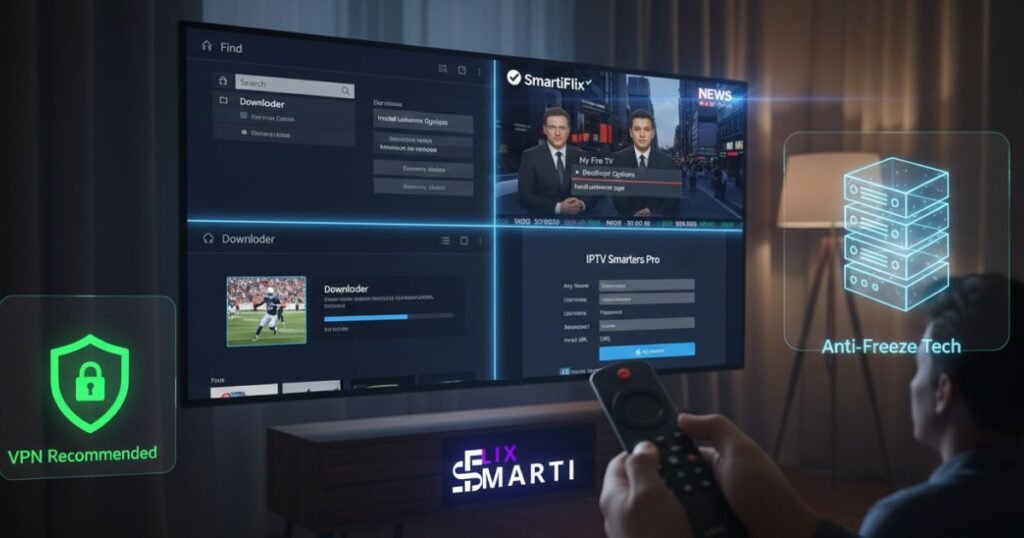
Step 1: Prepare Your Firestick for SmartiFlix
The Amazon Firestick requires a small configuration change to allow the installation of the SmartiFlix interface.
- Get the Downloader App: Go to the “Find” or “Search” icon on your Firestick home screen. Type “Downloader” and select the orange icon from the official Amazon App Store. Install it.
- Enable Developer Options: Navigate to Settings > My Fire TV > About. Highlight your “Fire TV Stick” and click the middle button on your remote 7 times quickly until it says, “No need, you are already a developer”.
- Allow Unknown Apps: Go back to Settings > My Fire TV > Developer Options. Turn on ADB Debugging and go to Install unknown apps. Find “Downloader” in the list and switch it to ON.
Step 2: Download the SmartiFlix Interface (IPTV Smarters Pro)
To access the content from the Smartiflix official website, you need a media player. IPTV Smarters Pro is the industry standard for SmartiFlix IPTV.
- Open the Downloader app you installed earlier.
- In the URL bar, type the official download link for the player (or use the direct APK link provided in your Smartiflix official website welcome email).
- Once the download finishes, click Install.
- Pro Tip: After installation, click “Done” and then “Delete” the installation file to save storage space on your Firestick.
Step 3: Activating Your SmartiFlix IPTV Account
Now that the player is installed, you need to link it to your premium SmartiFlix subscription.
- Launch the app and select “Login with Xtream Codes API” (this is the most stable method for 4K streaming).
- Enter the following details provided by the Smartiflix official website:
- Any Name: Type “SmartiFlix”
- Username: (Found in your activation email)
- Password: (Found in your activation email)
- Portal URL: (The specific server address provided in your email).
- Click “Add User” and wait for the “User Added Successfully” message.
Step 4: Optimizing Your Stream for 4K Quality
To ensure you get the full SmartiFlix 4K experience, go to the app settings and ensure “Hardware Decoding” is enabled. This uses the Firestick’s processor to deliver smoother playback for high-bitrate live sports and movies.
Why Choose SmartiFlix for Your Firestick?
- Global Access: From US locals to UK sports and Indian entertainment, we cover every corner of the globe.
- Anti-Freeze Tech: Our servers are optimized for the Firestick’s architecture, preventing lag during live events.
- Cost Efficiency: Get all premium streams for a fraction of the cost of a standard cable bill.
Call to Action: Need Help with Your Setup?
If you encounter any issues while trying to Install SmartiFlix IPTV On Firestick, our technical team is available 24/7.
- Visit our Support Page: Smartiflix Official Website Support
- Live Chat: Click the WhatsApp icon on our homepage for instant assistance with activation or troubleshooting.
Conclusion
Learning how to Install SmartiFlix IPTV On Firestick is the best way to upgrade your home theater in 2025. By following this guide, you have successfully bypassed expensive cable contracts and moved toward a more flexible, 4K-capable viewing experience. Remember to always keep your SmartiFlix IPTV credentials secure and enjoy the world’s largest library of live TV and on-demand content.
Frequently Asked Questions (FAQs)
1. Why don’t I see “Developer Options” in my settings?
Amazon hides this menu on newer devices. Simply go to Settings > My Fire TV > About and click your device name 7 times to unlock it.
2. Can I install SmartiFlix on more than one Firestick?
Yes, you can install the app on multiple sticks. However, the number of simultaneous streams depends on the plan you purchased from the Smartiflix official website.
3. Do I really need a VPN to use SmartiFlix IPTV?
While not mandatory for the app to function, a VPN is highly recommended to prevent ISP throttling and ensure your data remains private while streaming global content.
4. What should I do if the app says “Invalid Details”?
Double-check your username and password for typos. IPTV credentials are case-sensitive. If you still have trouble, contact support on the Smartiflix official website.
5. Is the “Downloader” app safe?
Yes, Downloader is a legitimate tool available on the official Amazon App Store used to facilitate the transfer of files to your device.